How to set up Stripe
With SimplyLearn you can receive payments through PayPal and Stripe. We would recommend at least adding Stripe as a payment solution as this allows your customers to pay by credit card.
Setting up Stripe can be a complicated process. If you want us at Simplylearn to set this up for you, reach out to us.
TABLE OF CONTENTS
- Video tutorial
- Preparation
- 1. Test Mode / Live Mode
- 2. Integration Type
- 3. Publishable/Secret Keys
- 4. Webhook URL & Endpoint Secret
- 5. Currency
- 6. Payment Methods
- 7. Return URL (optional)
Video tutorial
Preparation
If you don’t have a Stripe account, navigate to stripe.com and follow the instructions for registering a new account. Once your account is set up, you can navigate to dashboard.stripe.com to access all of your account settings.
First off, you need to access the Stripe settings in your Simplylearn platform. Go to Simplylearn –> Settings –> Stripe settings. In this article, these settings are defined as the Simplylearn Stripe settings.
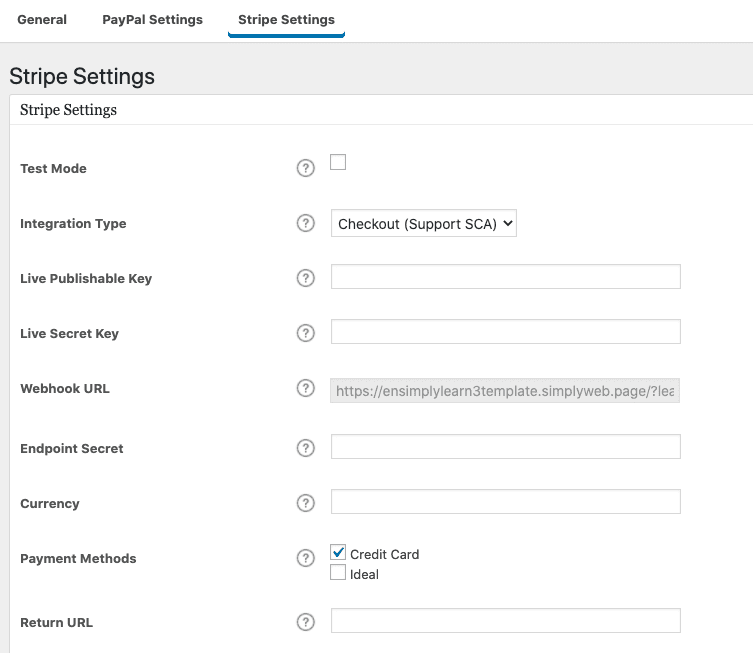
In this article, we will explain the settings and instruct you on how to set Stripe up on your LMS.
1. Test Mode / Live Mode
There are two ways you can set up the LearnDash Stripe integration: test mode or live mode.
- Test mode should be used when you’re still testing your site internally. No money will actually change hands, but Stripe will record if the transaction succeeded or failed.
- Live mode should be used when you’re ready to launch your course. All transactions in this mode are real transactions, and money will exchange hands. Once you’ve launched your site, you should stay in live mode indefinitely.
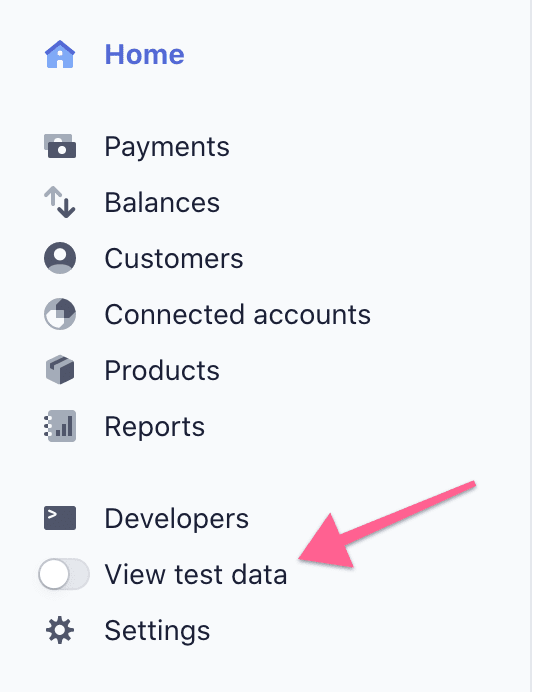
There are two different sets of keys, depending on which mode you’re using. In your Stripe dashboard, you will get the option to choose if you want to view test or live data.
2. Integration Type
There are two options for integration type: Legacy Checkout or Checkout (Support SCA).
Legacy Checkout captures customer payments in a light-box popup checkout form on your website.
Checkout (Support SCA) captures customer payments in a checkout form hosted on the Stripe website. This is to comply with the European PSD2 regulation.
3. Publishable/Secret Keys
You need to collect these keys from your Stripe account.
- Go to dashboard.stripe.com and log into your account.
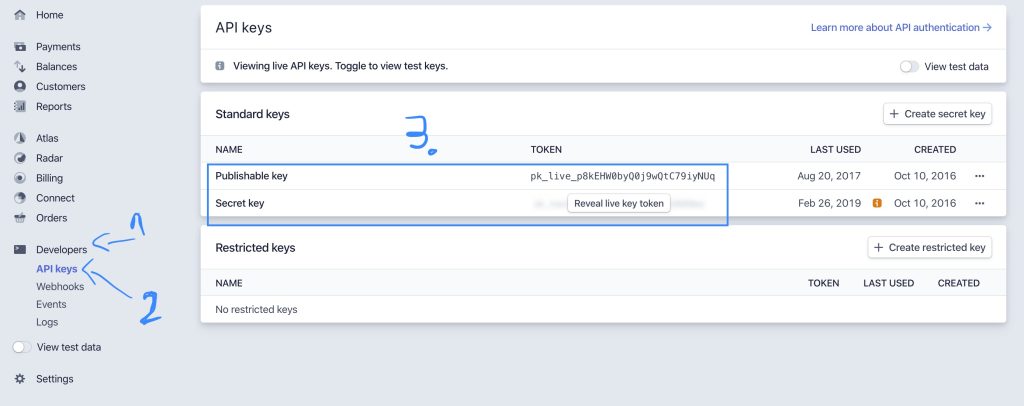
- Locate the “Developers” menu, and then press “API Keys”. In the section for “Standard Keys” you will then find a “Publishable Key” and a “Secret Key”. You need both of these keys to set up your integration.
- Paste these keys in your Simplylearn Stripe settings in the fields “Publishable” and “Secret” keys.
4. Webhook URL & Endpoint Secret
You only need to care about webhooks and endpoints if you are using the Checkout (Support SCA) integration.
ADD A STRIPE WEBHOOK
- Login to your Stripe account and navigate to https://dashboard.stripe.com/webhooks
- Click the Add endpoint button
- Copy the auto-generated Webhook URL from your Stripe settings inside Simplylearn.
- Back in Stripe, paste the Webhook URL you copied into the Endpoint URL field.
- For Version, select the latest API version
- Under Events to send, enable ONLYthe following events:
- customer.subscription.deleted
- invoice.payment_failed
- invoice.payment_succeeded
- checkout.session.completed
- Click Add endpoint
INSERT THE ENDPOINT SECRET
Now that your new webhook is created and enabled, the last thing you need to do is to retrieve your Endpoint Secret so that you can add it to the Simplylearn-Stripe integration settings.

- Locate the Signing secret section in the webhook you just created and select Click to reveal
- Copy the secret key
- Paste in the signing secret into the Endpoint Secret field in your Simplylearn Stripe settings.
5. Currency
You need to set the 3-letter ISO code for the currency you want to use.
For example:
- USD for United States Dollar
- CAD for Canadian Dollar
- AUD for Australian Dollar
See Stripe’s list of supported currencies & ISO codes here.
6. Payment Methods
By default, Credit Card is selected and is what most people will use.
There is also the option to accept iDEAL Payments instead, or to offer both options (Credit Card & iDEAL) upon checkout.
7. Return URL (optional)
If no return URL is provided, the user will remain on the course page after their transaction is processed.
But you can choose to send the user to a confirmation page instead. This can be a page you create on your site, with WordPress, a page builder, etc. Or even a page on a completely different domain. It’s entirely up to you.
Enter the full URL, beginning with https://
Related Articles
Stripe – Frequently asked questions (FAQ)
We recommend using Stripe as your payment gateway for selling your courses through Simplylearn. 1 - What is Stripe? Stripe is a third party payment solution which makes it possible to receive payments by credit- and debet-cards in your course's ...How to set up PayPal
SimplyLearn comes with built-in support for accepting payments via PayPal. If you don’t already have a PayPal account, you need to register. Before you accept any payments, your account must be verified (read more about verified accounts). Once you ...How to sell your courses
With Simplylearn, you can sell your courses to your audience. To do this, you first need to set up your learning platform with Paypal or Stripe (or both!). See this help article for how to setup Stripe See this help article for how to setup Paypal ...Group access settings
If you have many participants joining a group, it can be very time-consuming to manually add all the course participants into a group. The group access settings allow you to define a set of criteria for how a user gains and maintains access to your ...Course access settings
The course access settings allow you to define a set of criteria for how a user gains and maintains access to your course. We’ll go through all the options, some of which include one-time payment, recurring payments, free access, prerequisites and ...