Make your Vimeo videos only available on your domain
Do you want your video to only be accessible on your course platform? You can do this by adjusting the privacy settings in Vimeo.
Disclaimer: You need Vimeo Plus or higher to get this functionality
Privacy options allow you to upload videos and choose who can see them. Private videos will not show up in search results on Vimeo or in other search engine results.
To access the privacy settings of your video, navigate to your video. On the video’s edit page, click the Privacy tab.
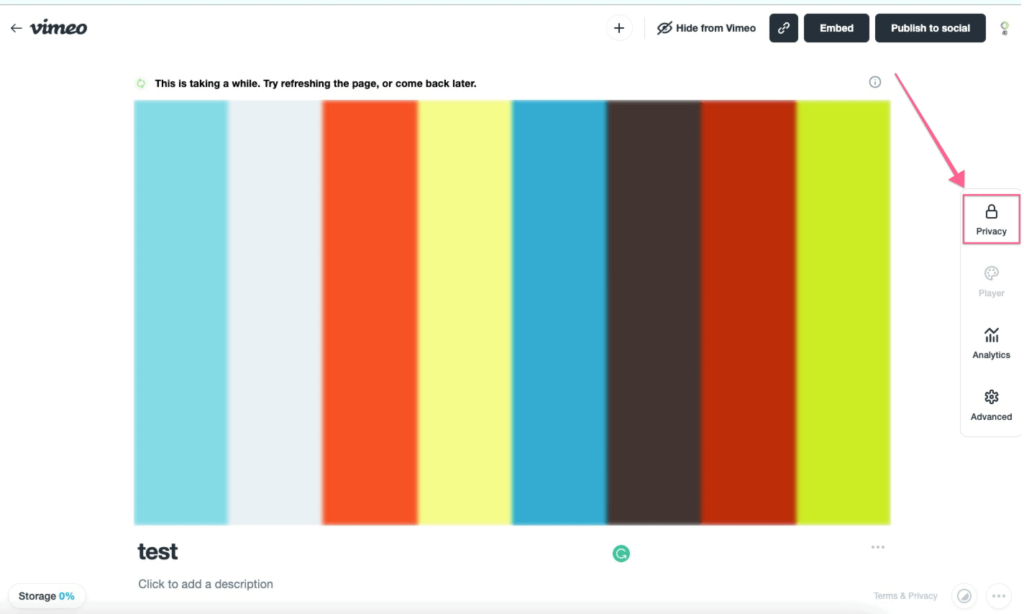
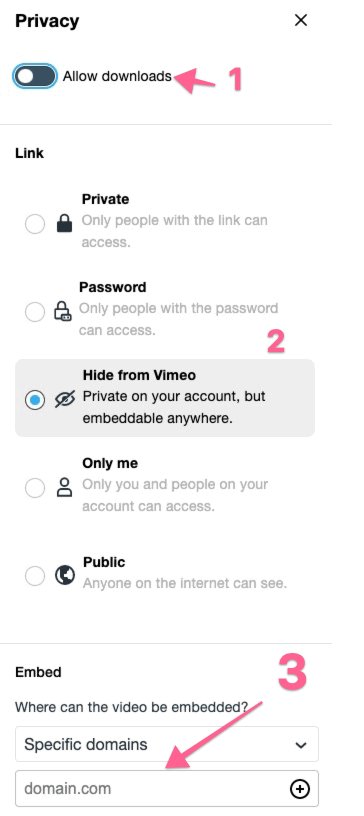
To make the video only available on specific domains make sure you select the following.
- Don't allow downloads. This will prevent users to download the video and send it to others.
- Hide from Vimeo. Your video will only be available on your course platform. It will not be findable on Vimeo or any other search engines.
- Specific domains. Select "specific domains" as the location of where videos can be embedded. Insert the URL of your website in the text field. You should now be able to embed your videos on your site.
The above privacy settings can also be adjusted for videos in bulk from the video manager by selecting the video(s) and then clicking Privacy. You can also set your upload default settings from this URL https://vimeo.com/settings/videos/upload_defaults
Related Articles
How to use video progression
Video progression is a learning method where the participants in the course must watch the entire video before they can proceed in the course. The learning method can be used for both modules and lessons. See the video below for instructions on how ...How to insert powerpoints
This article will teach you two different ways to insert your powerpoints onto your platform. With this functionality you can reuse existing materials and your users will get a great visual experience of your presentations. The Google Drive route We ...Course certificate
With SimplyLearn you can create custom course certificates. These certificates can be assigned to a course or a test. This article will walk you through the certificate creation process. For some, this process can be a bit advanced. If this is you, ...Enrollment code
With Simplylearn 3.0 you can password protect your courses with an enrollment code. To do this, you need to make sure you have selected the "free" access mode. Navigate to SIMPLYLEARN > Courses > Click on the course you want to edit. In the sidebar, ...Group report
With our reporting tool, it is very easy to filter our reporting data by a specific group. You then have the ability to look at data across all courses that the group has access to. User reports for specific users in your group are also available. To ...