Group report
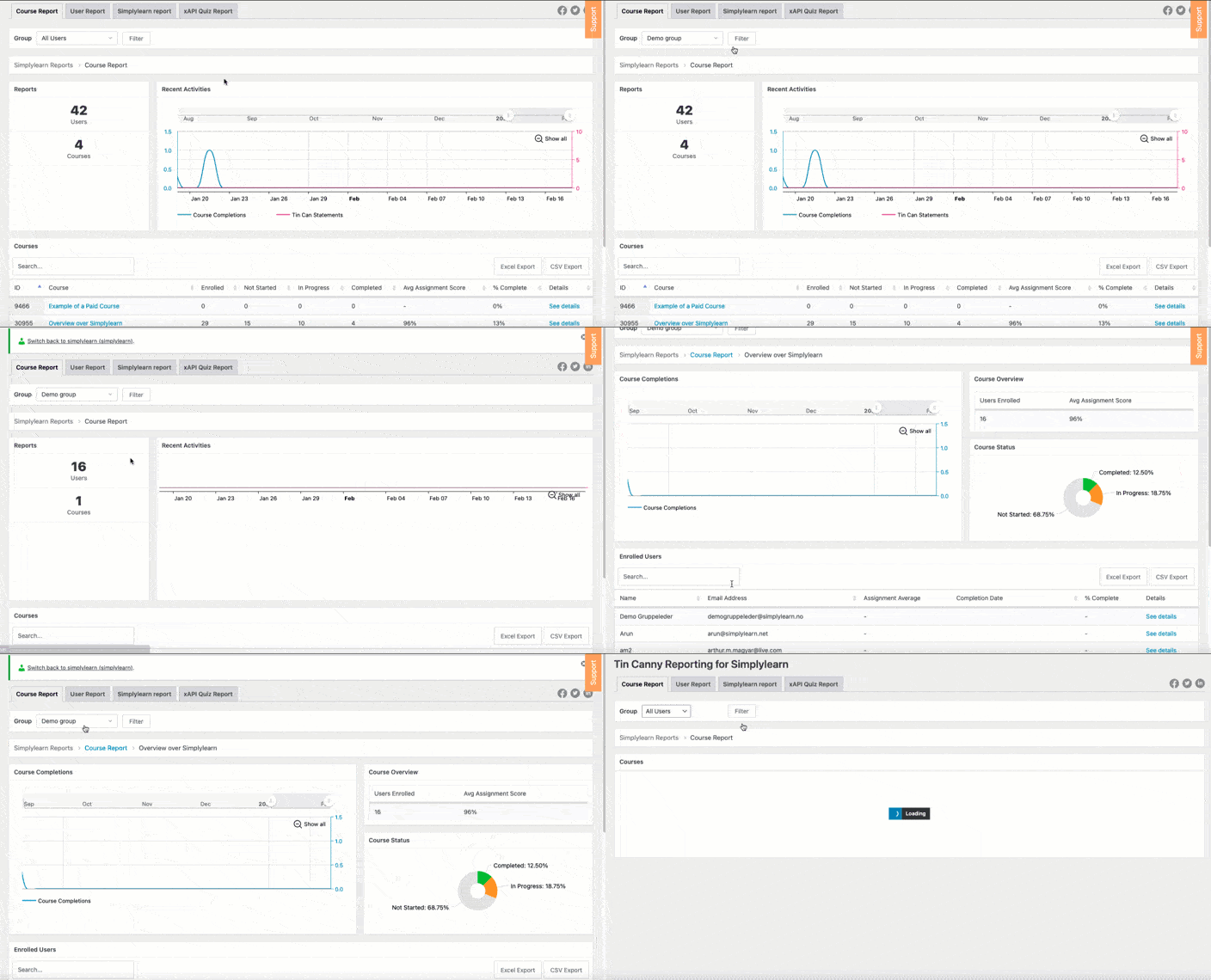
With our reporting tool, it is very easy to filter our reporting data by a specific group. You then have the ability to look at data across all courses that the group has access to. User reports for specific users in your group are also available.
To take advantage of group reporting, perform the following.
- Go to Simplylearn -> Reporting
- Locate the group dropdown menu, and select your specific group.
Related Articles
Group page
The Group Page content area is where you add a group title, description, and featured image for your group. This is what people will see before they enroll in (or purchase) access to the group. Simplylearn will automatically add a course table with a ...User report
The User Report lets you monitor the progress that your learners make in courses they are enrolled in. To get access to the user report go to Simplylearn –> Reporting Click on the tab “User report” When the User Report first loads, it shows you a ...Course report
To get access to the course report, go to SimplyLearn –> Reporting Overview You will then see an account for all courses on your site. From this menu you can see reports from specific courses and the users within them. The recent activities chart ...The group leader
The group leader is a user role in SimplyLearn which inherits the ability to: view reports on course progress for any user in the group view reports on assignment performance for any user in the group send email messages to the entire group How to ...The group leader
The group leader is a user role in SimplyLearn which inherits the ability to: view reports on course progress for any user in the group view reports on assignment performance for any user in the group send email messages to the entire group How to ...