How to use video progression
Video progression is a learning method where the participants in the course must watch the entire video before they can proceed in the course. The learning method can be used for both modules and lessons. See the video below for instructions on how to set this up:
You don’t have to use video progression in order to use videos for your course. Since SimplyLearn is built on WordPress you can embed any type of video anywhere within your content using the “video” block.
Video progression supports the following formats:
- Vimeo (vimeo.com)
- YouTube (youtu.be or youtube.com)
- Wistia (wistia.com)
- Amazon S3
- Local videos (uploaded to the WordPress Media Library
How to enable video progression
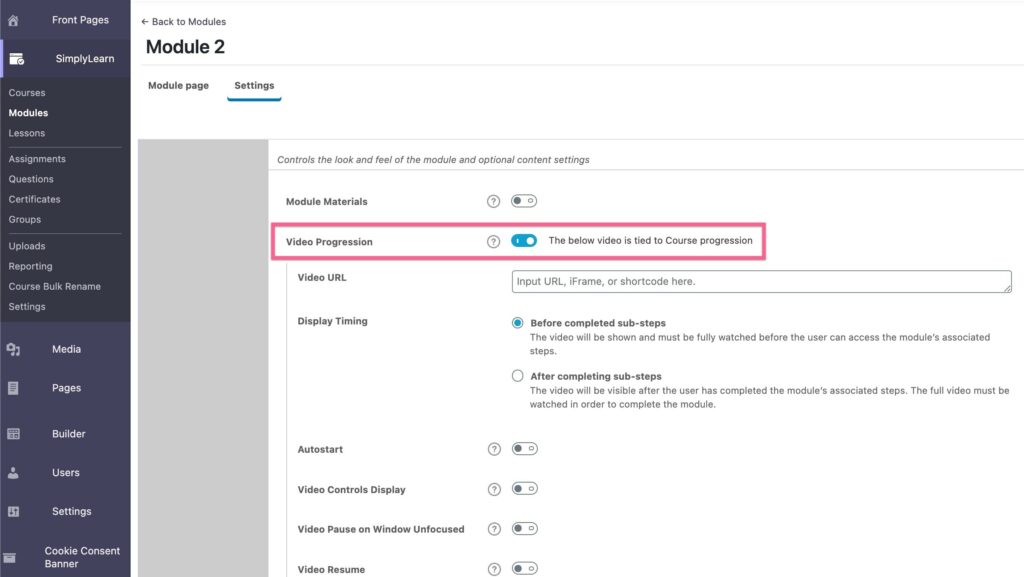
- Navigate to a lesson or topic edit screen in the admin
- Video progression is found on the Settings tab, under Display & Content Options
- Toggle the switch to turn it on
- Configure your settings (which we’ll discuss below)
IMPORTANT: Video progression logic (i.e. auto-completion, completion delay and disabling mark complete button) will not be applied if you are logged in as Administrator.
Adjust the position of your video
When using video progression, the video will be positioned at the top of the module/lesson. If you want to adjust the position of the video, for example, you want the video to display after the introduction text, then add this code to the position you want the video to display:
[ld_video]
Video progression settings
In this section, this article will walk you through the variety of settings that you can select between.
Når videoen skal vises
Denne innstillingen avgjør når videoen din skal vises til brukeren, og hvordan man skal håndtere deltrinn knyttet til modulen/leksjonen.
- Før fullførte del-trinn (standard). Videoen vises umiddelbart, og må sees fullstendig før brukeren kan få tilgang til noen av modulen/leksjonens tilknyttede deltrinn (deltrinn kan være leksjoner eller oppgaver.
- After completing sub-steps. The video will initially be hidden. It will become visible after the user has completed the lesson/topic’s associated sub-steps (topics and/or quizzes). The entire video must be watched in order to complete the lesson/topic. NOTE: If the module/lection has no lections or assignments associated, the video will be displayed upon page load.
The next 3 options only appear if you’ve chosen “After completing sub-steps.”
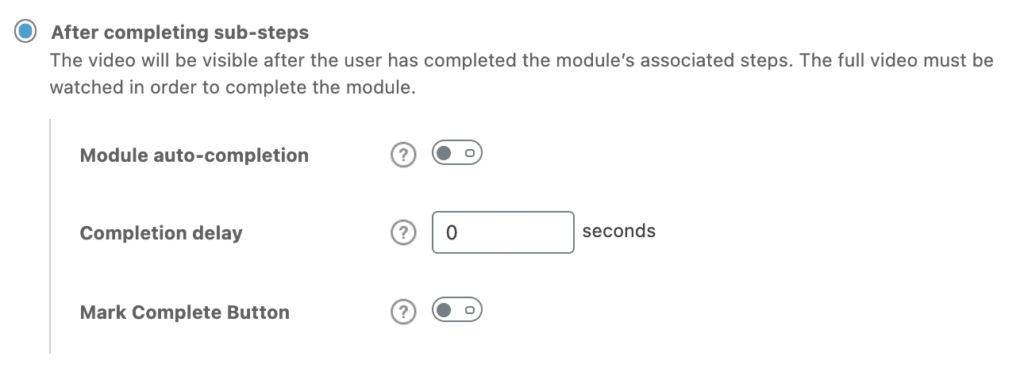
- Module/lection Auto-completion. Enabling this option will automatically mark the lesson/topic complete once the user has watched the entire video and automatically move the user to the next part of the course.
- Completion Delay. This refers to the delay (in seconds) between when the video is finished and when the lesson/topic is marked complete. Default is no delay (0 seconds)
- Mark Complete Button. By default, the “Mark Complete” button will be hidden, but this setting allows you to display it. Simply enable this setting to show the “Mark Complete” button
Autostart
Enable this setting to have the video automatically start playing on page load.
Due to browser policies to prevent unwanted ads from playing automatically, videos with autoplay or autostart enabled will play with the volume muted. Since this is now the default behavior for most browsers, make sure that the controls are enabled on your video so that your users will be able to unmute them.
Video Controls Display
By default, video controls are hidden from the user. Video controls include play, pause, volume, closed captions, and other settings found at the bottom of a video.
Enabling “Video Controls Display” will show all of these controls to the user, and allow them to have more control over the video. This feature is only available for YouTube & local videos.
Video Paused on Window Unfocused
If this setting is activated the video will be paused when the user switches to a different window.
Video Resume
By using the browser cookie, Simplylearn can “remember” how far in the video the course participant has watched and resume the video at that time.
Related Articles
Shortcodes
Shortcodes provide you with additional ways to insert SimplyLearn content into your courses, pages, posts and other custom post types. This article will list SimplyLearn content you can add to your site, and explain how to do it with both a ...Make your Vimeo videos only available on your domain
Do you want your video to only be accessible on your course platform? You can do this by adjusting the privacy settings in Vimeo. Disclaimer: You need Vimeo Plus or higher to get this functionality Privacy options allow you to upload videos and ...How to insert powerpoints
This article will teach you two different ways to insert your powerpoints onto your platform. With this functionality you can reuse existing materials and your users will get a great visual experience of your presentations. The Google Drive route We ...How to set up Stripe
With SimplyLearn you can receive payments through PayPal and Stripe. We would recommend at least adding Stripe as a payment solution as this allows your customers to pay by credit card. Setting up Stripe can be a complicated process. If you want us ...Course certificate
With SimplyLearn you can create custom course certificates. These certificates can be assigned to a course or a test. This article will walk you through the certificate creation process. For some, this process can be a bit advanced. If this is you, ...