General Settings
The settings will ONLY be visible for users with Administrator capabilities.
The General tab contains the majority of Simplylearn's global settings. It is organized into the following sections.
- Design & Content Elements
- Admin User Settings
- REST API Settings
In this article we will explain only the elements you should care about, if you want to explore the elements that are not explained in this article, please reach out to us.
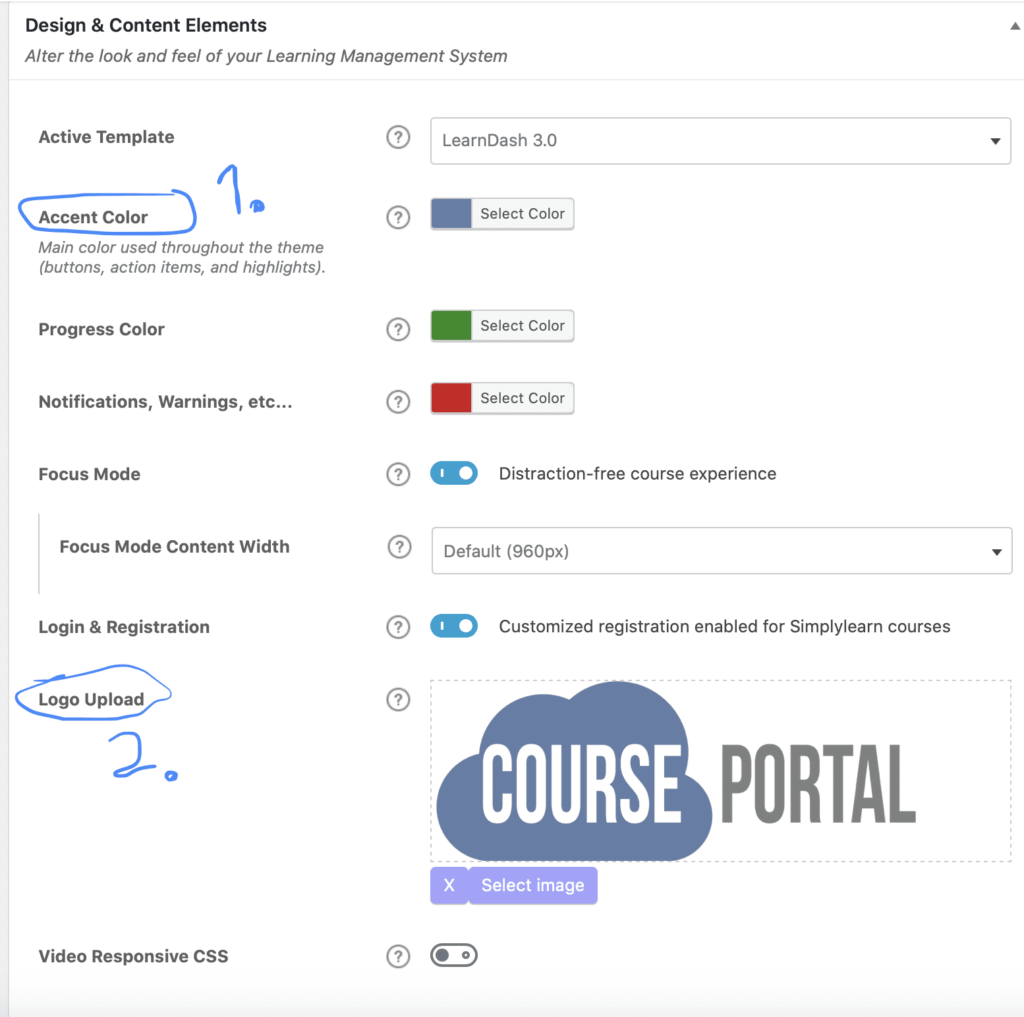
For most of our clients, the only thing that is necessary to edit in the general settings
will be the accent color and logo upload in the first setting box.
Design & Content Elements
In this box you only need to care about the color and logo settings.
Color
You can customize the colors of three main types of elements within LearnDash:
- Accent Color: The main color used throughout the theme (buttons, action items, and other callouts.
- Progress Color: The color used for all successful progress-related items (completed items, certificates, and progress bars).
- Notifications, Warnings, etc.: The color used for warnings and other important messages.
SIMPLYLEARN RECOMMENDS: We recommend keeping the progress and notification colors that are already installed in the settings but adjust the accent color to what is the main color for your website.
Logo
You need to upload the logo of your website here. This logo will be displayed when the user are progressing in a course and when they are logging in to the platform.
Global Pagination Settings
In this setting block, you can adjust how many elements are displayed per page for the various outputs. Click the question mark in the settings to get a description of the different outputs.
Admin User Settings
The admin user settings determine how your site administrators will be treated as they navigate through a course. These settings will apply to all users who have been assigned the Administrator role.
- Course Auto-Enrollment: Enable this setting to give administrators access to all courses automatically. If you’d prefer to require administrators to enroll (just like everyone else on your site), turn this setting off.
- Bypass Course Limits: Enable this setting to allow administrators to access course content in any order, and bypass all progression and/or access limitations that you may have set for the course. Turn this setting off to force administrators to navigate course content exactly how you’ve set it up.
- Include in Reports: Enable this setting to include course activity by administrators in all reports Turn this setting off to exclude administrator activity in reports.
REST API Settings
The REST API is mainly for developers. If you don’t know what the REST API is, you can leave these settings at their default values.
Related Articles
Group access settings
If you have many participants joining a group, it can be very time-consuming to manually add all the course participants into a group. The group access settings allow you to define a set of criteria for how a user gains and maintains access to your ...Course access settings
The course access settings allow you to define a set of criteria for how a user gains and maintains access to your course. We’ll go through all the options, some of which include one-time payment, recurring payments, free access, prerequisites and ...Assignment settings
Release a module/lesson on a specific date
Go to the specific module/lesson you want to edit. Click settings Scroll down to “Module Access Settings” Choose “Specific date” and decide which day and time.Make your Vimeo videos only available on your domain
Do you want your video to only be accessible on your course platform? You can do this by adjusting the privacy settings in Vimeo. Disclaimer: You need Vimeo Plus or higher to get this functionality Privacy options allow you to upload videos and ...