Question categories
Question categories are available for all question types. They are completely optional, but you can use them to:
- better organize all of your quiz questions
- provide the user with quiz statistics, broken down by category
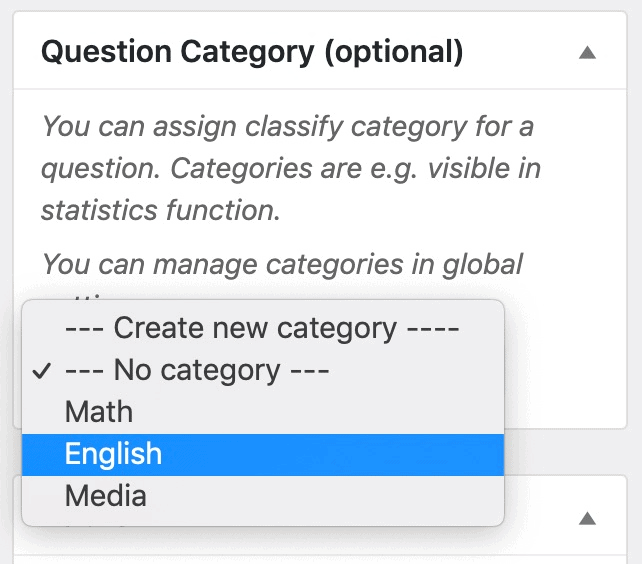
To place a question in a category:
- Find the Question Category box in the sidebar
- Click the dropdown
- Choose an existing category, or select “Create new category” and give your new category a name
Update or Delete Categories
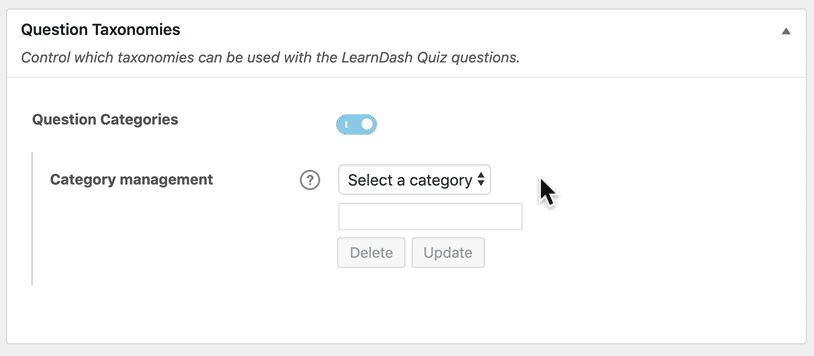
To delete a question category, or update its title:
- Navigate to SIMPLYLEARN > QUESTIONS
- Click on the Settings tab
- In the Question Taxonomies section, click the dropdown to “Select a category”
- Click the Delete button to delete it, or
- Update its title and then click Update
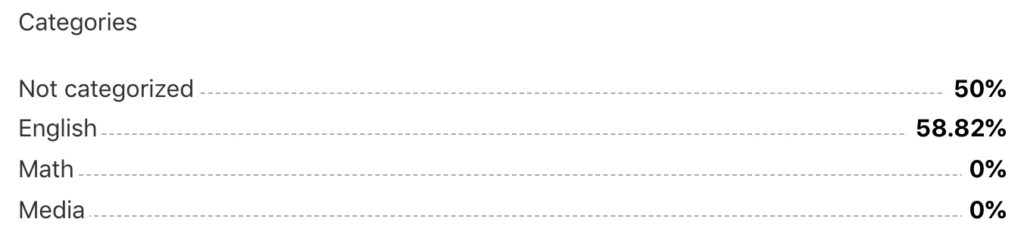
At the end of a quiz, you can choose to display to percentage score the user received in each category of questions:
Related Articles
The assignment builder
The SimplyLearn test builder provides a quick, intuitive way to add, edit, move & delete all the questions in your test. This article explains how to use every aspect of the test builder. Accessing the test builder Going via the “Assignment” menu ...General Settings
The settings will ONLY be visible for users with Administrator capabilities. The General tab contains the majority of Simplylearn's global settings. It is organized into the following sections. Design & Content Elements Admin User Settings REST API ...Course certificate
With SimplyLearn you can create custom course certificates. These certificates can be assigned to a course or a test. This article will walk you through the certificate creation process. For some, this process can be a bit advanced. If this is you, ...